Samsung Frame TV Art Uploader

Automatically uploads and rotates artwork on a Samsung Frame TV, with Home Assistant integration via MQTT for live entity state, collection selection, and a custom Lovelace card.
Built on top of NickWaterton/samsung-tv-ws-api for Samsung TV WebSocket communication.
| Home Assistant Card |
Web UI |
 |
 |
Upgrading from v0.1.x? See the v0.2.0 release notes for breaking changes and what's new.
Upgrading from v0.2.x or v0.3.x? See the v0.4.7 release notes for what's new.
- Fetches artwork collections from git repositories (or uses a local bind-mount)
- Rotates a randomized or sequential set of images on the TV on a configurable schedule
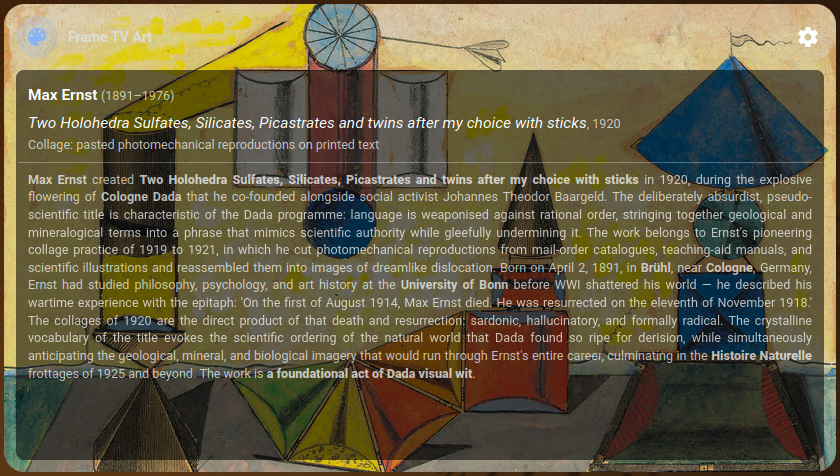
- Publishes artwork metadata (title, artist, description, collection) to MQTT for Home Assistant
- MQTT discovery — entities are auto-created in HA with no manual YAML
- Built-in web UI (port 8080) for collection selection, settings, and manual refresh
- Saved Selections — name and save any image set as a preset; synced across all clients via retained MQTT; auto-generates thematic defaults (Landscapes, Marine, Impressionism, etc.) on first start
- Per-collection carousels with S/M/L thumbnail size controls and a shuffle preview mode
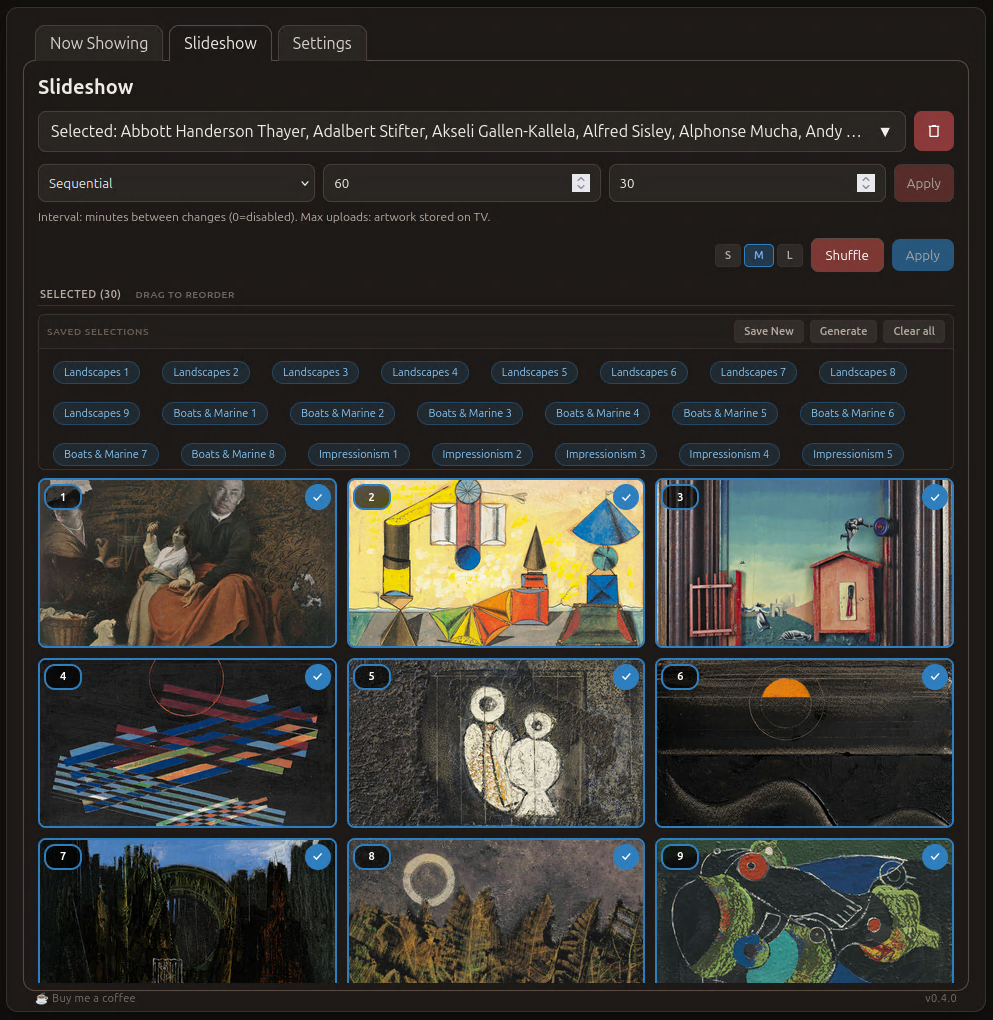
- Drag-and-drop ordering — reorder hand-picked images in the Selected overview to control sequential playback order; ordinal badges (1, 2, 3…) show the current order
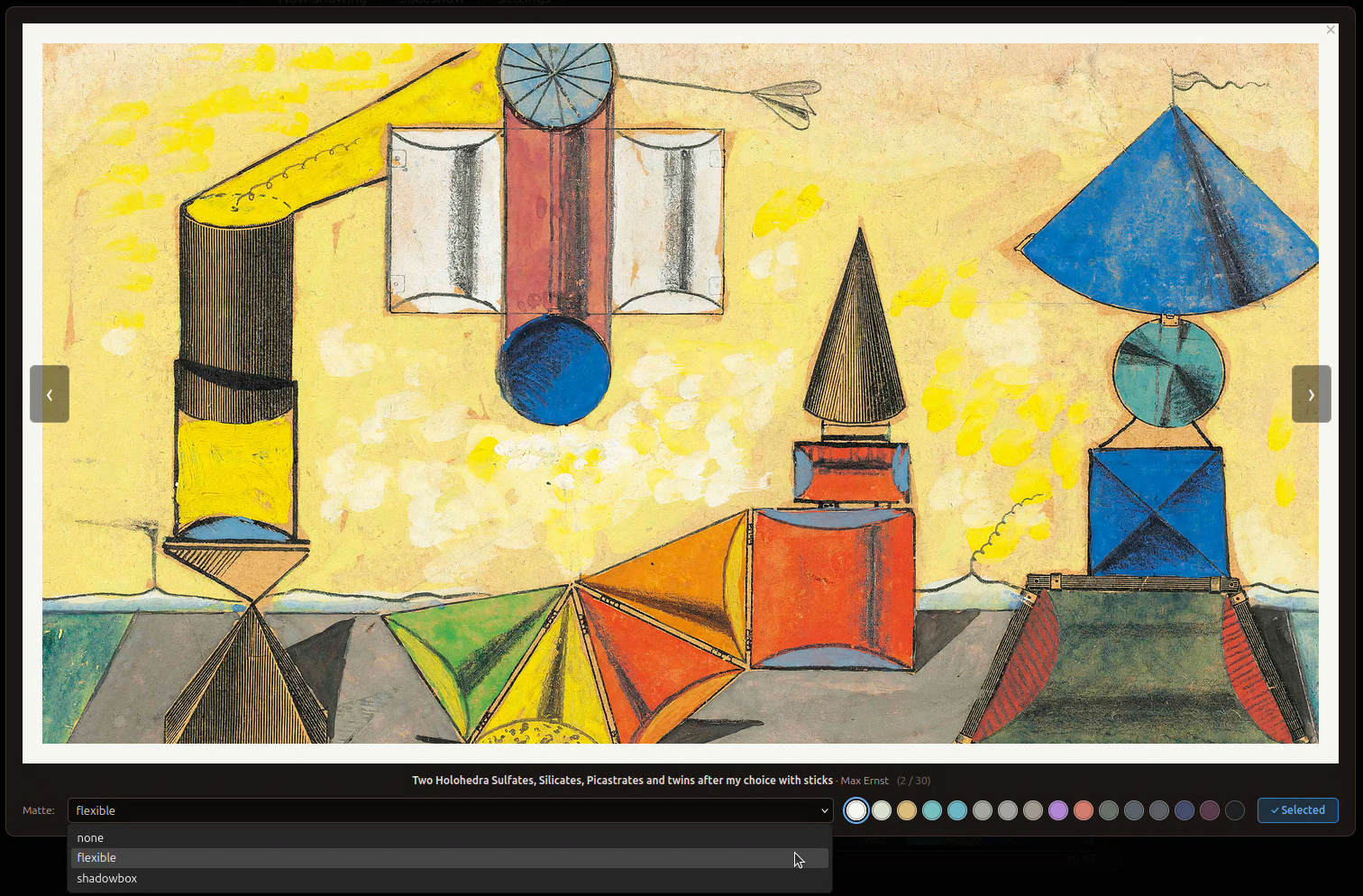
- Per-image matte — pick a matte type and color per image from a large-preview modal. Type is a dropdown, colors are circular swatches sorted lightest-→-darkest with the selected one outlined; the palette is calibrated from photographs of real Frame TV mattes for accurate previews. Overrides persist to disk and are applied on next upload, or live-applied via
change_matte if the image is already on the TV. Falls back to the global MATTE/PORTRAIT_MATTE defaults from the env when no override is set
- Large preview modal (web UI) — double-click any thumbnail to open a near-full-screen preview with a higher-fidelity matte simulation and an inline matte/selection picker, then close with Esc or click outside
- In-progress autosave (web UI) — the unapplied selection and max-uploads count are stored to
localStorage so a browser refresh or accidental tab close doesn't lose work; auto-cleared once you Apply or Reset
- Home Assistant Lovelace card with live progress display during refresh operations
- mDNS advertisement (
samsung-tv-art.local) via Avahi — requires network_mode: host, macvlan, or macvlan+bridge (see compose example)
- Samsung Frame TV (The Frame, any year with Art Mode)
- MQTT broker (e.g. Mosquitto)
- Docker host on the same LAN as the TV
- (Optional) Home Assistant with MQTT integration
1. Copy and edit the env file
cp examples/samsung-tv-art.env.example samsung-tv-art.env
Open samsung-tv-art.env and set at minimum:
SAMSUNG_TV_ART_TV_IP — the IP address of your Frame TVSAMSUNG_TV_ART_MQTT_HOST — your MQTT broker address (enables all MQTT features)
2. Copy and edit the compose file
cp examples/docker-compose.yml docker-compose.yml
3. Start the container
Open the web UI at http://samsung-tv-art.local:8080 (or http://<host-ip>:8080).
Note: The .local address requires the container to be on the LAN — use network_mode: host, a macvlan network, or macvlan+bridge. See examples/docker-compose.yml and the Troubleshooting section for details. If using plain bridge networking, access the UI by host IP instead.
Collection folder structure
Whether you use Git repos or a local bind-mount, collections can be organised in two ways:
Flat collection — images live directly in a top-level folder:
CollectionName/
  artwork_data.csv          ← metadata for every image in this folder
  Artist_Year_Title.jpg
  Artist_Year_Title.jpg
  ...
Multi-collection repo / grouped artists — images are one level deeper inside a parent folder. Useful when you want to group related collections under a single repo or directory:
Artists/
  Monet/
    artwork_data.csv
    Monet_1906_Water_Lilies.jpg
    ...
  Renoir/
    artwork_data.csv
    Renoir_1876_Dance.jpg
    ...
In both cases the innermost folder name (e.g. CollectionName, Monet) becomes the selectable collection label in the UI and HA card. Folders with no artwork_data.csv still appear in the dropdown — the images will rotate but the HA card will show no metadata.
artwork_data.csv — required format
Each collection must include an artwork_data.csv file at its root.
The file must be UTF-8 encoded with a header row. The following columns are recognized:
| Column |
Required |
Description |
artwork_file |
Yes |
Exact filename of the image (e.g. Monet_1906_Water_Lilies.jpg) |
artwork_dir |
Yes |
Path of the collection folder relative to the media root — matches the collection folder name for flat collections (e.g. Monet) or the parent/subfolder path for grouped collections (e.g. Artists/Renoir) |
collection_name |
Conditional |
Display name for the collection in the UI and HA card drop-down. Required when a collection contains artwork by more than one artist (see note below). Takes precedence over artist_name as the collection label. |
artist_name |
Recommended |
Artist's full name — shown bold in the HA card |
artist_lifespan |
Recommended |
e.g. 1840–1926 — shown next to artist name |
artwork_title |
Recommended |
Title of the artwork — shown in italics in the HA card |
artwork_year |
Recommended |
Year created — shown next to the title |
artwork_medium |
Optional |
Medium (e.g. Oil on canvas) — shown below the title |
artwork_description |
Optional |
Description text. Supports Markdown: **bold**, *italic*, ***bold italic***, `code` |
Note: artwork_file and artwork_dir are mandatory. Rows missing artwork_file are silently skipped. If no artwork_data.csv is present the images still rotate but the HA card will show no metadata.
⚠️ Collection naming rule: Every row that shares the same artwork_dir must produce a single, consistent collection label — otherwise the collection will appear more than once (or not at all) in the drop-down. There are two ways to satisfy this:
- Single-artist collection — leave
collection_name empty and ensure every row has the same artist_name. The artist name becomes the label automatically.
- Multi-artist collection — set
collection_name to the same value on every row in that artwork_dir. This overrides artist_name as the label and keeps the collection unified regardless of how many different artists are in the folder.
A template is provided at examples/artwork_data.csv.template.
Example artwork_data.csv — single-artist collection (leave collection_name empty, artist_name is used as the label):
artwork_file,artwork_dir,collection_name,artist_name,artist_lifespan,artwork_title,artwork_year,artwork_medium,artwork_description
Monet_1906_Water_Lilies.jpg,Monet,,Claude Monet,1840–1926,Water Lilies,1906,Oil on canvas,One of Monet's most celebrated series.
Monet_1877_Gare_Saint_Lazare.jpg,Monet,,Claude Monet,1840–1926,Gare Saint-Lazare,1877,Oil on canvas,Painted as part of a series on light and atmosphere.
Example artwork_data.csv — multi-artist collection (collection_name must be identical on every row in the folder):
artwork_file,artwork_dir,collection_name,artist_name,artist_lifespan,artwork_title,artwork_year,artwork_medium,artwork_description
Monet_1906_Water_Lilies.jpg,Impressionism,Impressionism,Claude Monet,1840–1926,Water Lilies,1906,Oil on canvas,
Degas_1877_Dance_Class.jpg,Impressionism,Impressionism,Edgar Degas,1834–1917,The Dance Class,1874,Oil on canvas,
Pissarro_1870_Lordship_Lane.jpg,Impressionism,Impressionism,Camille Pissarro,1830–1903,Lordship Lane Station,1871,Oil on canvas,
Image filename convention
Filenames are parsed as a fallback when no CSV row is found for a file. Use this naming pattern for best results:
ArtistName_Year_Title of Work.jpg
Examples:
Monet_1906_Water_Lilies.jpgVanGogh_1889_Starry_Night.jpg
Option A — Git repositories
Each git repository should contain one collection folder's worth of images and an artwork_data.csv.
The recommended repo structure is:
your-collection-repo/
  artwork_data.csv
  Monet_1906_Water_Lilies.jpg
  Monet_1877_Gare_Saint_Lazare.jpg
Selecting collections from the web UI (recommended)
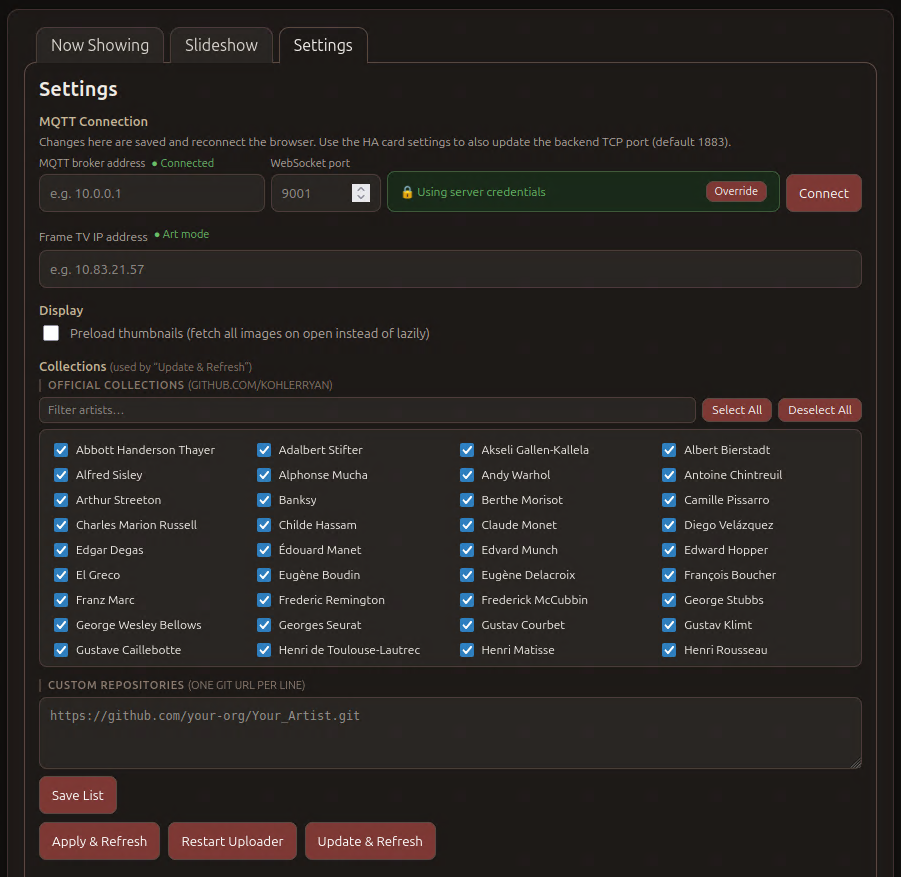
The easiest way to manage collections is via the Settings → Collections tab in the web UI. All 54 available artist collections from github.com/kohlerryan are listed as checkboxes — check the ones you want, hit Save List, then click Update & Refresh to fetch and seed the TV.
Custom or third-party repository URLs can be pasted into the Custom Repositories text area below the checkbox grid, one URL per line.
Without the web UI (env file / headless)
In headless setups, set SAMSUNG_TV_ART_COLLECTIONS in your env file as a space- or comma-separated list of URLs:
SAMSUNG_TV_ART_COLLECTIONS=https://github.com/kohlerryan/Claude_Monet.git https://github.com/kohlerryan/Albert_Bierstadt.git
Note: .env files do not support multiline values. For many repos, create a data/collections.list file with one URL per line — this file takes effect automatically without a container restart:
https://github.com/kohlerryan/Claude_Monet.git
https://github.com/kohlerryan/Albert_Bierstadt.git
https://github.com/kohlerryan/Vincent_van_Gogh.git
Save this as data/collections.list in the directory where you run docker compose. The data/ folder is already bind-mounted by the default compose file. The web UI writes this file automatically when you save from the Settings tab.
Click Update & Refresh in the web UI or HA card to fetch the latest commits and re-seed the TV at any time.
Available official collections
All 54 collections below are available as checkboxes in the web UI Settings tab. For headless use, their URLs follow the pattern https://github.com/kohlerryan/<Repository>.git.
Option B — Local bind-mount
Place collection subdirectories inside ./media. The container maps ./media → /app/frame_tv_art_collections.
Flat layout — one folder per collection:
media/
  Monet/
    artwork_data.csv
    Monet_1906_Water_Lilies.jpg
    ...
  Degas/
    artwork_data.csv
    Degas_1874_Dance_Class.jpg
    ...
Grouped layout — collections nested one level inside a parent folder (useful for organising by artist, style, etc.):
media/
  Artists/
    Monet/
      artwork_data.csv
      Monet_1906_Water_Lilies.jpg
      ...
    Renoir/
      artwork_data.csv
      Renoir_1876_Dance.jpg
      ...
In both cases each innermost image-containing folder becomes a selectable collection. You can mix flat and grouped layouts freely. Click Update & Refresh in the settings panel to pick up newly added folders without restarting the container.
All settings are controlled via environment variables. Copy examples/samsung-tv-art.env.example to samsung-tv-art.env for a fully commented reference.
Key variables:
| Variable |
Default |
Description |
SAMSUNG_TV_ART_TV_IP |
(required) |
IP address of the Frame TV |
SAMSUNG_TV_ART_UPDATE_MINUTES |
30 |
Artwork rotation interval |
SAMSUNG_TV_ART_MAX_UPLOADS |
30 |
Max images kept on TV at once |
SAMSUNG_TV_ART_UPLOAD_DELAY_SECONDS |
1 |
Seconds between individual image uploads. Increase if the TV drops connections |
SAMSUNG_TV_ART_DELETE_DELAY_SECONDS |
1 |
Seconds between individual image deletions |
SAMSUNG_TV_ART_POST_DELETE_RECOVERY_SECONDS |
5 |
Seconds to wait after all deletions finish before starting uploads. Increase if uploads fail after a refresh |
SAMSUNG_TV_ART_SEQUENTIAL |
false |
true = fixed order, false = shuffle |
SAMSUNG_TV_ART_MQTT_HOST |
— |
MQTT broker hostname or IP. Setting this enables all MQTT features (state publishing, commands, web UI). SAMSUNG_TV_ART_MQTT_DISCOVERY is a separate opt-in only needed for HA auto-discovery. |
SAMSUNG_TV_ART_COLLECTIONS |
— |
Space- or comma-separated git repo URLs (for many repos, use data/collections.list instead) |
SAMSUNG_TV_ART_GITHUB_TOKEN |
— |
GitHub PAT for private repos |
SAMSUNG_TV_ART_FETCH_ON_START |
false |
Fetch collections on container start |
SAMSUNG_TV_ART_COLLECTIONS_FROM_CSV |
true |
Use artwork_data.csv inside each collection folder to show friendly artist/collection names in the UI dropdown. Set to false to show raw folder names instead |
SAMSUNG_TV_ART_LOCAL_WEB |
true |
Enable the web UI on port 8080 |
SAMSUNG_TV_ART_MDNS_ENABLE |
true |
Advertise via mDNS as <hostname>.local — requires host, macvlan, or macvlan+bridge networking |
SAMSUNG_TV_ART_MODE_CHECK_SECONDS |
5 |
How often (in seconds) the uploader polls the TV as a fallback to confirm Art Mode state. Art Mode changes are now detected instantly via WebSocket events (go_to_standby, art_mode_changed, wakeup), so the poll interval no longer affects response time. The default of 5 is fine; you can raise it safely if you want less TV chatter. |
SAMSUNG_TV_ART_MAX_FILE_BYTES |
(unset) |
Maximum encoded image size in bytes. When set, the uploader will progressively JPEG-compress any image that exceeds it. If quality reduction alone can't shrink the file enough, the image is also scaled to half resolution and compression retried. Useful for TVs or network configurations that reject large uploads. Leave unset on modern TVs — no recompression is applied by default. |
SAMSUNG_TV_ART_MAX_DIMENSION |
(unset) |
Caps the maximum image resolution before upload, e.g. 1920x1080. Accepts WxH or a single number for a square cap. Useful for 1080p Frame TVs that reject oversized images regardless of file size. |
See examples/samsung-tv-art.env.example for the full list with descriptions.
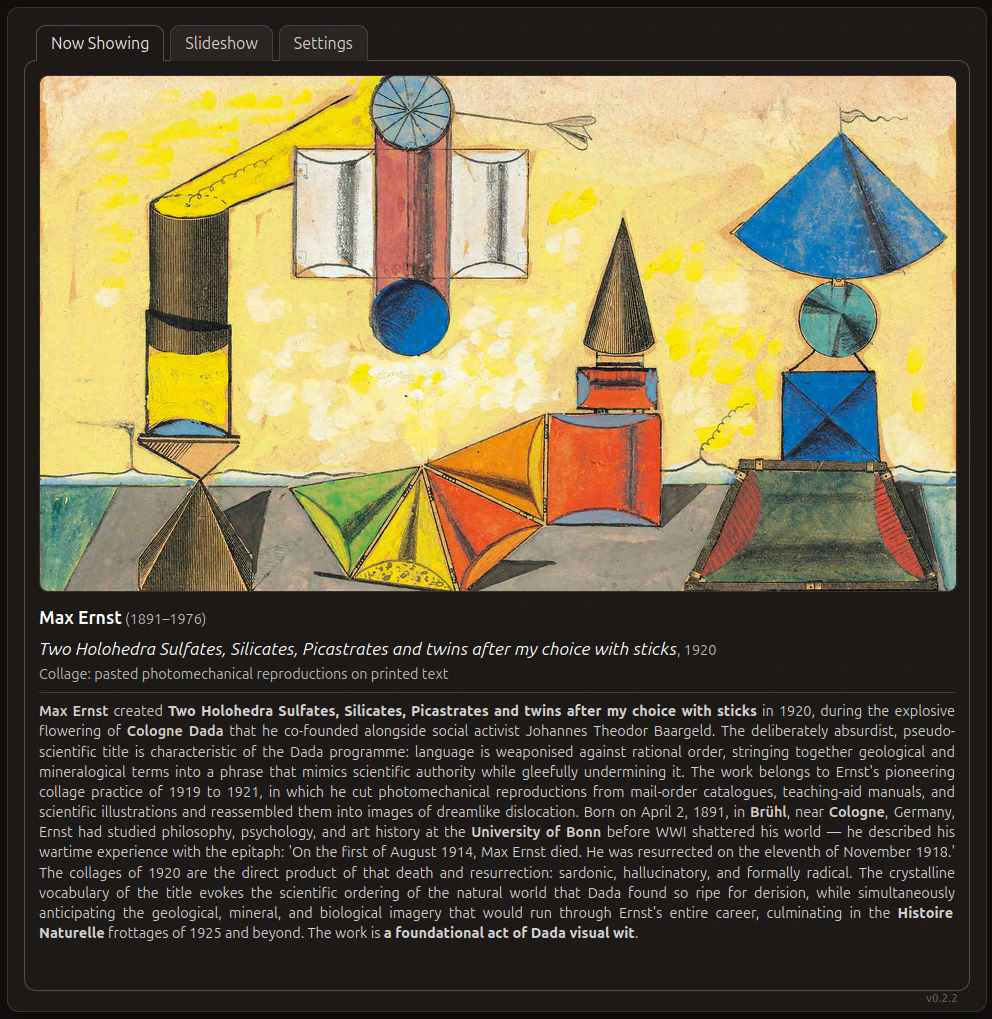
When SAMSUNG_TV_ART_LOCAL_WEB=true, a web interface is available at http://samsung-tv-art.local:8080.
| Now Showing |
Settings |
|
 |
| Slideshow Override |
Matte Picker (preview modal) |
 |
 |
| Mobile |
|
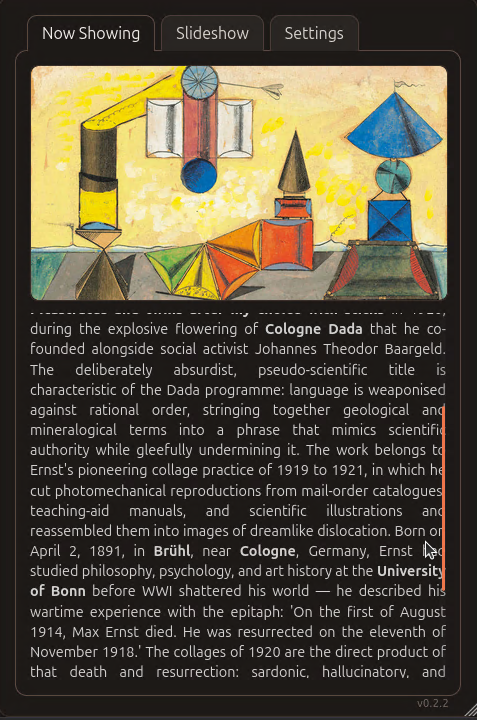 |
|
- Collections tab — select which collections are active and trigger a refresh
- Slideshow tab — browse available images in per-collection carousels (S/M/L size). In a collection carousel, single-click a thumbnail to open the large preview modal (where you can pick the matte type and color); the corner checkmark adds or removes the image from the selection. In the Selected overview, double-click a thumbnail to open the preview (single-click is reserved for drag-start) and drag thumbnails to control sequential playback order (numbered badges show current order). Shuffle for a preview before committing, and manage named Saved Selections that sync across all clients via MQTT. A small status badge above the controls indicates pending changes: ● Preview (amber) when a Shuffle preview is loaded but not applied, ● Modified (blue) when your selection differs from what's currently on the TV
- Settings tab — adjust MQTT/TV connection settings without restarting the container; includes a Preload thumbnails toggle (off by default) that eagerly fetches all slideshow images instead of loading them as you scroll. Action buttons are automatically disabled (with an explanatory message) when the TV is not in Art Mode, and show in-progress text while a command is pending
- Now Showing metadata — the artwork info section (artist, title, description) scrolls when content overflows; a soft fade at the bottom of the section indicates more content is available below
The Lovelace card is available as a standalone repository: kohlerryan/samsung-tv-art-card
It is also bundled in this repo under ha-card/.
See ha-card/README.md for installation steps and examples/ha-lovelace-card.yaml.example for a complete card configuration.
| Card — Fixed |
Card — Not in Art Mode |
|
 |
v0.4.0: the HA card is now viewer-only — collection selection, slideshow editing, matte pickers, presets, and settings have all moved to the web UI. The cog in the card header opens the web UI in a new tab. See ha-card/README.md for the full migration notes.
Mixed-content / image URLs
Browsers block HTTP image requests from HTTPS pages. If HA is served over HTTPS, configure both URL fields in the card so it can pick the right one:
image_path_http: http://10.0.0.10:8080/app/frame_tv_art_collections
image_path_https: https://samsung-tv-art.yourdomain.com/app/frame_tv_art_collections
Or copy the media folder into HA's www directory to serve images from /local:
docker cp samsung-tv-art:/app/frame_tv_art_collections/. \
  /path/to/ha-config/www/frame_tv_art_collections/
Then set image_path: /local/frame_tv_art_collections in the card config.
The ./data bind-mount stores files that survive container restarts:
| File |
Purpose |
data/token_file.txt |
TV authentication token (auto-created on first connect) |
data/uploaded_files_cache.json |
Maps local filenames to TV content IDs |
data/overrides.env |
Runtime settings overrides (written by web UI Settings panel) |
data/collections.list |
Alternative to env var — one git URL per line |
| Topic |
Direction |
Description |
frame_tv/selected_artwork/state |
publish |
Currently displayed artwork filename |
frame_tv/selected_artwork/attributes |
publish |
Full artwork metadata (title, artist, description, …) |
frame_tv/selected_collections/state |
publish / subscribe |
Active collection names |
frame_tv/collections/attributes |
publish |
All available collections list |
frame_tv/cmd/collections/refresh |
subscribe |
Trigger a Refresh |
frame_tv/cmd/settings/sync_collections |
subscribe |
Trigger Update & Refresh (git fetch + reseed) |
frame_tv/ack/collections/refresh |
publish |
Progress acks during refresh |
samsung-tv-art/
├── Dockerfile
├── start.sh               — container entrypoint: fetches collections, starts uploader
├── uploader.py            — main TV uploader and MQTT integration
├── serve.py               — minimal HTTP server for the web UI
├── assets/
│   ├── standby.png                                      — default standby artwork baked into the image
│   ├── hacard_fixed_v0.2.1.png                          — HA card fixed layout screenshot
│   ├── hacard_art_mode_off_v0.2.1.png                   — HA card not-in-art-mode state
│   ├── hacard_collection_selection_v0.2.1.png           — HA card collection selector
│   ├── hacard_dynamic_v0.2.1.png                        — HA card dynamic layout
│   ├── hacard_fixed_art_details_v0.2.1.png              — HA card fixed layout art detail overlay
│   ├── hacard_slideshow_v0.3.0.png                      — HA card slideshow override panel
│   ├── hacard_settings_v0.2.2.png                       — HA card settings panel
│   ├── webui_now_showing_v0.2.2.png                     — web UI now showing tab
│   ├── webui_mobile_now_showing_v0.2.2.png              — web UI mobile now showing
│   ├── webui_slideshow_v0.3.0.png                       — web UI slideshow tab
│   └── webui_settings_v0.2.3.png                        — web UI settings tab
├── ha-card/
│   ├── samsung-tv-art-card.js   — Home Assistant Lovelace card
│   ├── README.md
│   └── images/
│       ├── hacard.png         — HA card screenshot
│       ├── hacard_control.png — HA card collections/control panel screenshot
│       └── hacard_settings.png— HA card settings panel screenshot
├── scripts/
│   ├── fetch_collections.sh     — git clone/pull collection repos at runtime
│   ├── aggregate_csv.py         — merges per-collection CSVs into a single artwork_data.csv
│   └── bake_addons.sh           — build-time alternative to fetch_collections.sh
├── www/
│   └── index.html         — web UI source (baked into container image)
├── examples/
│   ├── docker-compose.yml
│   ├── samsung-tv-art.env.example
│   ├── ha-lovelace-card.yaml.example
│   └── artwork_data.csv.template  — copy and fill in for each collection
├── data/                  — bind-mount target (gitignored contents)
└── media/                 — bind-mount target for local artwork (gitignored contents)
Uploads fail on 2018/2019 Frame TV (send_image error -1) — These TVs run Art API 0.97 and require images to be uploaded as a WebSocket binary frame rather than via the D2D socket method used by newer firmware. The uploader detects this automatically: when api_version returns 0.97 it switches to the correct protocol. Check the logs for API version: 0.97 to confirm it was detected. If the TV is still failing, confirm it is in Art Mode and that the token file in data/ is valid. See xchwarze/samsung-tv-ws-api#130 for full background.
TV not connecting — Check SAMSUNG_TV_ART_TV_IP and ensure the container is on the same network as the TV. The TV may prompt for a pairing confirmation on first connect.
samsung-tv-art.local doesn't resolve / mDNS not working — mDNS multicast requires the container's network interface to be directly on the LAN. Three supported modes (see examples/docker-compose.yml):
| Mode |
mDNS to LAN |
Host → container |
Notes |
network_mode: host |
✅ |
✅ |
Simplest. Not available on Docker Desktop (Mac/Windows). |
| macvlan |
✅ |
❌ |
Container gets its own LAN IP/MAC. Host cannot reach it directly (macvlan hairpin). |
| macvlan + bridge |
✅ |
✅ (via bridge) |
Container joins both networks — LAN presence via macvlan, host/container comms via bridge. |
| bridge only |
❌ |
✅ |
Multicast can't leave the Docker bridge; .local only resolves inside the container. Use the host IP directly instead. |
Logs showing avahi-daemon failed to start are most commonly caused by a missing /etc/machine-id (auto-generated by current start.sh) or stale PID files from a previous crash (auto-cleaned). Check docker logs samsung-tv-art for mDNS: prefixed lines.
No entities in HA — Confirm SAMSUNG_TV_ART_MQTT_HOST is set and that the broker is reachable from the container. Then add SAMSUNG_TV_ART_MQTT_DISCOVERY=true to enable HA MQTT Discovery so entities are auto-created.
Images not showing in HA card — Open the browser console and look for FRAME-TV-ART-CARD: computed bgUrl. Mixed-content errors mean you need to use image_path_https or serve images from /local.
Check container logs:
docker logs -f samsung-tv-art
- samsung-tv-ws-api by NickWaterton — the WebSocket API library that handles all communication with the Samsung Frame TV, including art upload, content management, and art mode control.
MIT — see LICENSE.